Monday, July 27, 2009

Webrat's fill_in method on cucumber

Consider the following:

In feature:

And I fill in "Telephone (Home)" with "61234567"

In webrat steps:

When /^I fill in "([^\"]*)" with "([^\"]*)"$/ do |field, value|
fill_in
(field, :with => value)
end

The error encountered:

Could not find field: "Telephone (Home)" (Webrat::NotFoundError)

At first I thought the regex couldn't parse "(Home)" properly as "(" & ")" are control characters in regex. Turns out it's because the way webrat's fill_in method looks for the field. I had to use the following instead for the nested form field.


And I fill in "enrollment_addresses_attributes_0_telephone_home" with "61234567"

Super easy and fast cd ripping using abcde on the command line

Am ripping my new Pat Matheny cd to mp3 using abcde on the command line now. Just type in "abcde" and answer a few simple questions and hey presto!


~/projects/aims. Yes, my Master? abcde
Executing customizable pre-read function... done.
Getting CD track info... Querying the CD for audio tracks...
Grabbing entire CD - tracks: 01 02 03 04 05 06 07 08 09 10 11 12
Checking CDDB server status...
Querying the CDDB server...
Obtaining CDDB results...
Retrieving 1 CDDB match...done.
---- Pat Metheny Group / Letter From Home ----
1: Have You Heard
2: Every Summer Night
3: Better Days Ahead
4: Spring Ain't Here
5: 45/8
6: 5-5-7
7: Beat 70
8: Dream of the Return
9: Are We There Yet
10: Vidala
11: Slip Away
12: Letter From Home

Edit selected CDDB data? [y/n] (n):
Is the CD multi-artist? [y/n] (n):
Grabbing track 01: Have You Heard...
cdparanoia III release 10.2 (September 11, 2008)

Ripping from sector 0 (track 1 [0:00.00])
to sector 28939 (track 1 [6:25.64])

outputting to /home/jasonong/projects/aims/abcde.a20e7d0c/track01.wav
.......

Wednesday, July 22, 2009

Search for codes in your files quickly with grep

Sometimes when I do unit tests or cucumber tests I'll encounter an error that I've roughly aware of the offending code but not sure which files it resides in. That's where grep comes in useful.

Search for occurrences of ".name" in view files recursively


grep '.name' -r app/views


Get occurrences with its surrounding 2 lines before and after


grep '.name' -r -2 app/views

Monday, July 20, 2009

Error using cucumber, selenium and firefox 3

Cucumber and Webrat works great for Behaviour Driven Development (BDD). In certain situations it's better to couple Cucumber with Selenium especially when we need to test javascript or have a look at the test visually.

When I first started Cucumber and Selenium on my Ubuntu. Selenium-server throws up saying that firefox 3 path isn't defined. Thankfully a blog article by Tze Yang presents a solution.However I still get the annoying error every now and then when firefox 3.0 was upgraded. This is because of the firefox executable is a symlink to a shell script.


ls -l /usr/bin/ | grep firefox

lrwxrwxrwx 1 root root 11 2009-06-13 13:32 abrowser -> firefox-3.0
lrwxrwxrwx 1 root root 11 2009-06-13 13:32 abrowser-3.0 -> firefox-3.0
lrwxrwxrwx 1 root root 33 2009-07-21 00:34 firefox -> firefox-3.0
lrwxrwxrwx 1 root root 32 2009-06-13 13:32 firefox-3.0 -> ../lib/firefox-3.0.11/firefox.sh

lrwxrwxrwx 1 root root 31 2009-07-01 00:42 firefox-3.5 -> /home/jasonong/.firefox/firefox


The trick then is to change the firefox symlink to the actual firefox 3 executable.


sudo rm /usr/bin/firefox
sudo ln -s /usr/lib/firefox-3.0.11/firefox-3.0 firefox


That should get you some nice cucumber + selenium action.

Friday, April 24, 2009

Kiosk development - Star Micronics TSP-100 thermal printer


Thermal printers are great for printing receipts. Thermal printers requires no ink as it prints by making "burns marks" on the special thermal paper.

Star Micronics TSP-100 claims to support Linux drivers which essentially mean Red Hat variants via .rpm driver. Eg. RHEL, CentOS.

Couldn't convert the supplied .rpm file to .deb using alien but managed to find somebody who's kind enough to iron out all the dependencies and packaged a .deb

http://www.drelmo.net/2008/01/17/star-micronics-tsp600-receipt-printer-driver-released/


If you're using latest version of Ubuntu then it'll probably work out of the box.

To print receipts from your webapp, issue system commands directly from your controller.

Eg. using Rails

def print_receipt
system "lpr -P printer_name receipt.pdf
end

"lpr" is unix print command that will send print jobs to cups daemon. Better still, set the thermal printer as default printer then

system "lpr receipt.pdf"

To view print jobs on Ubuntu, either view from "System" > "Administation" > "Printing" or in browser "http://localhost:631"

To cancel all print jobs in terminal

cancel -a

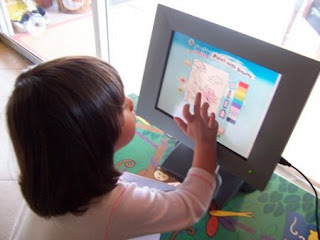
Kiosk development - Setting up Elo touchscreen


I did not setup the touchscreen but there's a fairly simple instructions on how to do it on unix machines.

http://www.elotouch.com/files/install/elo_linux_serial_driver_v3.1_installation_instructions.txt

Just remember to access the control panel and set touch mode to be "Click on touch" else you'll find icons being dragged around while you're pressing on the screen.

Kiosk development - Fullscreen Firefox


If you ever wanna use Firefox under kiosk environment. It's a good idea to strip out all the menus and navigation and window bars using the R-Kiosk addon

Do the following configurations before you install the addon.

1. Create a "kiosk" profile using "firefox -ProfileManager". This will ensure you have access to another Firefox session that's not in kiosk mode.


firefox -ProfileManager


2. Type "about:config" in the URL and search for "browser.sessionstore.resume_from_crash" and set value to "false". This will prevent Firefox from asking to restore previous sessions if exited abruptly.

3. Uncheck anything in "Preferences" that may cause a dialog to popup while Firefox is in use.

4, Set your application's start page as the default homepage. You won't have access to the URL bar in kiosk mode!

Now you're ready to install the addon.

https://addons.mozilla.org/en-US/firefox/addon/1659

Once the addon has been installed, you'll be able to access your kiosked Firefox by running the following either in console or a icon command.


firefox -P kiosk


To access non-kiosk Firefox use the following


firefox -P default


If the above keeps getting kiosk then append "-no-remote" to the command


firefox -P default -no-remote


Actually there's a way to disable the kiosk addon.


firefox -P kiosk -safe-mode


This will give a dialog with option to disable all addons. ;)